Piano Keyboard Template Printable: How to Choose and Print
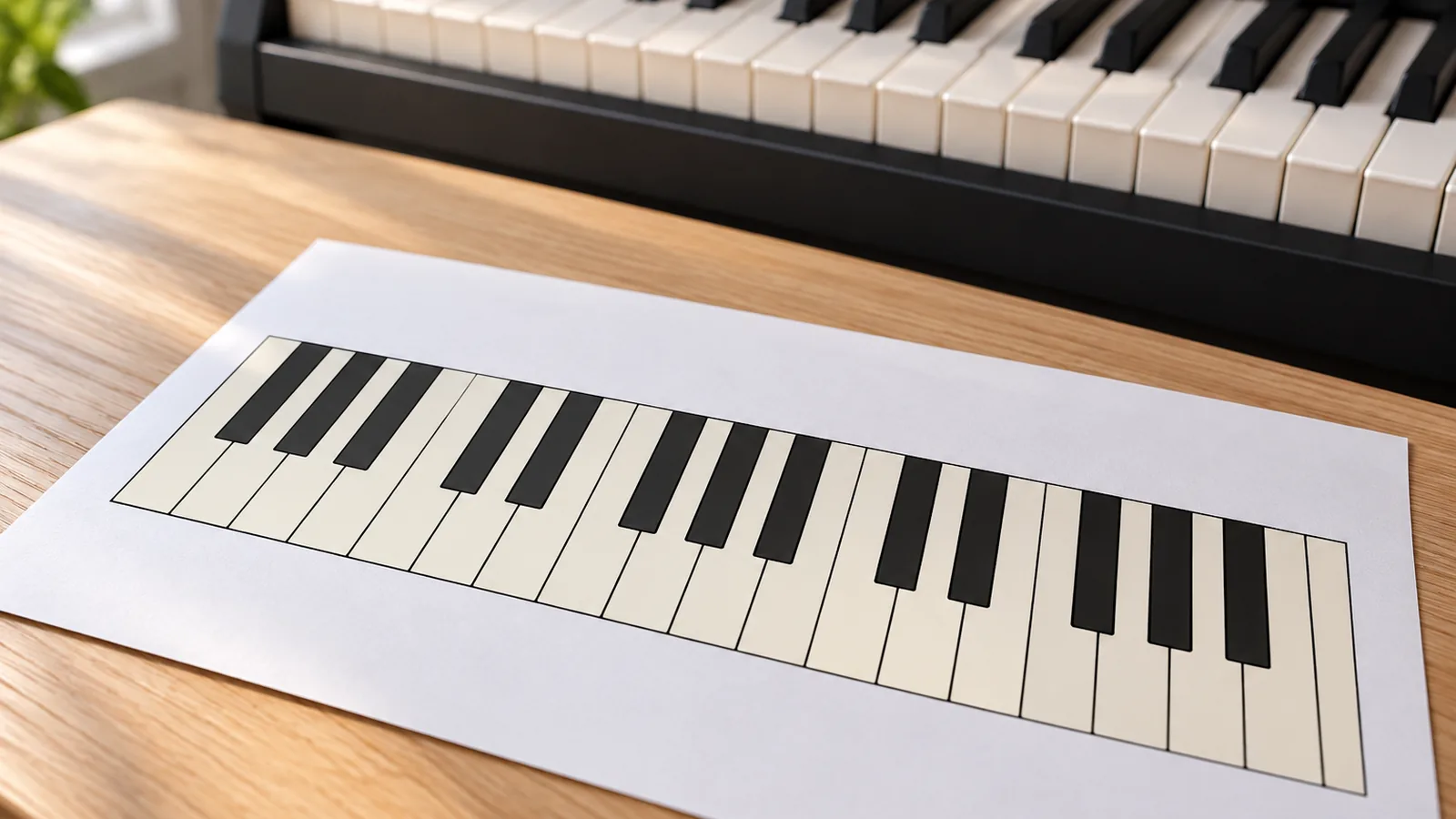
Choose a printable piano keyboard template by matching its key count to your digital piano, since the chart generator offers layouts from 25 to 88 keys. Print at 100% for standard keys, and try 97% only on smaller Yamaha keys, because printer drivers may scale output.
Quick answer
How do I choose and print a piano keyboard template?
Pick the layout that matches your key count, since the generator offers 25, 32, 37, 49, 61, 76, and 88 keys. Print on A4 or US Letter in landscape. Test 97% only on smaller Yamaha keys, because printer drivers may scale output.
- Choose the layout that matches your key count, from 25 to 88 keys.
- For a labeled chart, set the labels. For a write-in worksheet, set labels to None and select Blank worksheet.
- Select A4 or US Letter paper and set the orientation to landscape.
- Set the scale to 100% for standard keys, or print one test page at 97% for smaller Yamaha keys.
- Cut along the dotted lines, arrange the notes from lowest to highest, and line up the black-key groups with the piano’s black keys.
Choose a template that fits your keyboard
Match the template’s key count to your digital piano before you print anything. A printable template is a paper reference or learning chart, not an accessory that attaches to the instrument, so it needs no adhesive or curing time. Keyboards vary in size, so count your keys or check your range first.
The 88-key chart runs from A0 to C8 and includes 52 white keys and 36 black keys. Middle C is C4, key 40, so find it on your piano and line it up with the chart’s C4.
The generator provides three printable options:
- 88-key labeled chart: all 88 keys labeled, printed in three rows.
- Large-print C4–C6 chart: a large two-octave keyboard for a smaller section of the piano.
- Blank worksheet: 88-key and two-octave versions, with a write-in line on every key when labels are set to None.
The ready-made PDFs are black and white and come in A4 and US Letter. Choose the paper size your printer loads. Use the blank worksheet if you want to write your own note names during lessons.
Check paper and cutting safety
Paper and a cutting tool are the only materials involved, and neither carries safety-data or label warnings.
Cutting is the one step that can injure your hands. If your guide sits behind the keys, you print it and then cut along the dotted lines. A full-size keyboard-and-staff guide is also printed at actual size, then cut or folded before you place it behind the keys. Handle your cutting tool with care, and keep the hand that steadies the paper clear of the blade’s path.
Warning
Cut only along the printed dotted lines, so the key groups stay whole.
Follow the handling instructions that come with whatever cutting tool you use. Work on a stable, clear surface, and cut one edge at a time to keep the paper from shifting. Once the guide is cut, check it against your keyboard before you slot it into place.
Print and fit the template step by step
Print the template in landscape at the scale your guide specifies. Then fit it to your keys before first use.
- Check your key count. Look up your instrument’s key count or range. Digital-piano keyboards vary in size.
- Pick a matching layout. The generator offers 25, 32, 37, 49, 61, 76, and 88 keys, so choose the one that matches your piano.
- Set the labels. For a labeled chart, choose the label style, octave-number display, black-key naming, and which keys get labels. For a write-in worksheet, set labels to None and select Blank worksheet to put a write-in line on every key.
- Print in landscape. Choose A4 or US Letter, then set the orientation to landscape.
- Print at 100% for a behind-the-keys guide. Standard-size keys need 100% scale.
- Try 97% for smaller Yamaha keys. If the guide is too wide, print a test page at 97%, since printer drivers may scale output.
- Cut along the dotted lines. Separate the pieces with scissors, keeping each cut straight.
- Arrange the notes in ascending order. Place the pieces left to right, from the lowest note to the highest.
- Align the black-key groups. Line up the two- and three-black-key markers with your piano’s black keys.
- Slide the guide behind the keys. Insert the strip so it sits behind the keys.
- Use the full-size guide if you have one. Work through these sub-steps:
- Print at actual size, not “fit to page”.
- Cut or fold the pages, then join them.
- Align C at the join.
- Place the assembled strip behind the piano keys.
- Run the pre-use check. Confirm the chart’s range and note order match your instrument. For a behind-the-keys guide, check that the black-key groups line up and the strip fits behind the keys. A pass means each label sits under its key and the strip lies flat without bulging.
Keep a paper template ready for lessons
Card stock or lamination keeps a printed template stable through repeated lesson use.
| Use or condition | Check | Action | Source |
|---|---|---|---|
| Chart handled or folded often | Paper stays flat and undamaged | Print on card stock or laminate it | pianolex.com |
| Blank worksheet for write-ins | Labels set to None | Select Blank worksheet and set labels to None | musictheoryprint.com |
| Standard-size keys | Printed size matches the keys | Print at 100% | davidhendramusic.com |
| Page size | Paper matches your printer tray | Choose A4 or US Letter before printing | musictheoryprint.com |
Card stock is the simplest upgrade. There is no set drying or waiting time for laminated pages, so don’t plan a lesson around one. Keep the labeled chart and the blank worksheet in separate folders so each stays clean for its job.
Fix print scaling and alignment problems
Fix a guide that does not fit by printing at 100% and checking it against your keys. Fix a strip that will not join by printing at actual size.
| Problem | Likely cause | Supported fix | Print setting | Source |
|---|---|---|---|---|
| Guide does not fit the keys | Printer driver scaling changes the output | Print at 100% and check the fit before cutting | 100% | davidhendramusic.com |
| Guide does not fit smaller Yamaha keys | Yamaha keys are smaller than standard keys | Try a smaller scale and recheck the fit | 97% | davidhendramusic.com |
| Full-size strip does not join at C | Printed with “fit to page” instead of actual size | Print at actual size, then align C at the join | Actual size | pianolex.com |
Printer drivers may scale output, so check the fit on one page before you print the full set. Once the pages are printed, cut or fold them, then align C at the join before you place the strip behind the keys.
Use the printable checklist before practice
Work through this list in order before your first practice session with the chart.
- [ ] Confirm your digital piano’s key count
- [ ] Pick a layout with that key count
- [ ] Choose labeled or blank output
- [ ] Set label style and octave numbers
- [ ] Set black-key naming and label placement
- [ ] Select A4 or US Letter paper
- [ ] Set landscape orientation before printing
- [ ] Print at 100% for standard keys
- [ ] Check fit against the black keys
Start practicing only after the fit check passes, because a chart that sits off the black keys makes the note names harder to read. If you print the blank worksheet, set labels to None so every key gets a write-in line. If the keys still don’t line up, the troubleshooting table above lists the likely causes.
Frequently Asked Questions
Where can I download a free printable piano keyboard template?
The chart generator offers ready-made black-and-white PDFs in A4 and US Letter sizes. Pick the layout that matches your key count, then print in landscape orientation.
Can I use a printable keyboard template to practice scales and chords?
Yes, a printable template works as a paper learning or reference chart. For practice, use the blank worksheet with labels set to None, which puts a write-in line on every key so you can mark the notes you’re working on. The two-octave blank version suits smaller practice ranges, while the 88-key version covers the full keyboard.
Can I print a keyboard template on regular paper and laminate it?
No drying or waiting time is given for laminated pages.
Are one-octave printable keyboard templates available?
No, the generator offers a two-octave layout, C4–C6. The closest option is the large-print C4–C6 chart, which covers two octaves in bigger print for a smaller section of the keyboard.
Can I print a template for a keyboard size not listed?
Choose the listed layout closest to your key count, then print at 100% for standard-size keys and check the fit before you cut.
Conclusion
Quick answer – Match the key count: choose the layout that fits your digital piano, from 25 to 88 keys. – Pick the output: use a labeled chart to read note names, or a blank worksheet to write your own.
Choose a template that fits your keyboard Match the template’s key count to your digital piano before you print.
The generator provides three printable options:
Sources
- Piano Keys Labeled: Printable Piano Keyboard Chart (musictheoryprint.com)
- davidhendramusic.com (davidhendramusic.com)
- pianolex.com (pianolex.com)